


Suivi promises a 360° view of your business. But a complete view includes documents (drawings, specs, meeting minutes, procedures) that give context to your tracking data. Running on Microsoft? Until now, those files probably lived in SharePoint: five clicks away, in another tab, often in the wrong version.
The SharePoint widget changes that: access your Microsoft libraries straight from your Suivi dashboards and portals, without moving a single file.
The promise: smoother workflows
In most teams, working documents and project tracking don't live in the same place. The project plan is in SharePoint, the tasks are in the work management tool, and in between: scattered links, piling attachments, and one question on repeat: "wait, where's the latest version?"
The SharePoint widget makes life easier by opening a window onto SharePoint right inside Suivi. Your files stay where they are, and you reach them without switching tools.
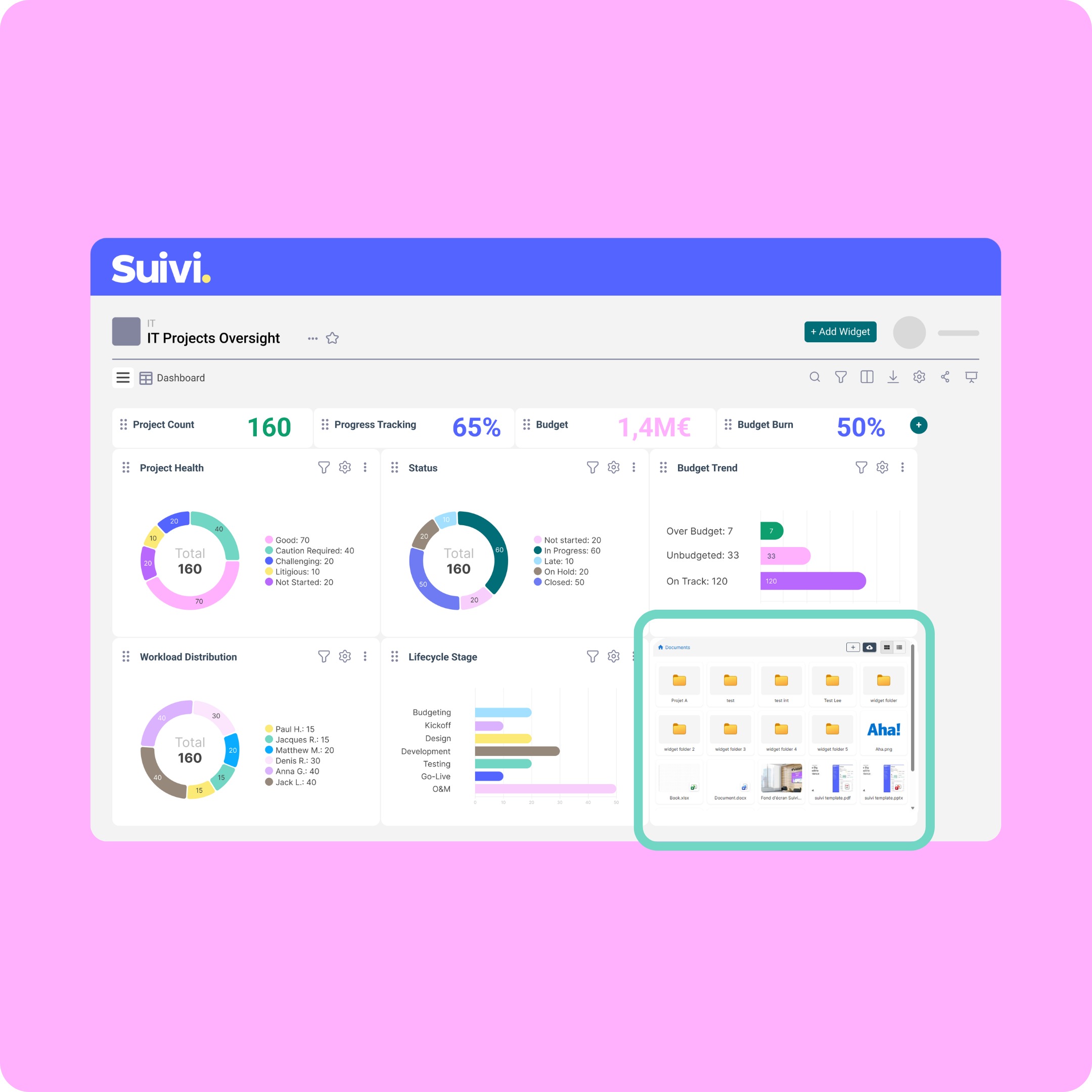
The feature: small widget, big library
No complex setup: add it to your dashboards and portals like any other widget.
Prerequisites
Your Microsoft 365 admin must authorize the connection to Suivi. From there, what each user sees in the widget depends on their delegated permissions.
What you configure
- The SharePoint site to connect.
- The library and folders to expose.
- The display mode: Compact (folders as thumbnails, for quick access) or Large (list view with file metadata).
- The maximum number of items displayed.
- The visible attributes in Large mode, from the Appearance tab.
What you can do from the widget
Depending on your Microsoft permissions, right from Suivi:
- browse folders and documents, search for a file;
- preview or download a document;
- upload a file, create a folder;
- open a document for editing via Microsoft Online;
- sort by attribute, and switch between Compact and Large modes on the fly.
What changes day to day
For you, the board and portal builders, it means surfacing the right libraries in the right place (project folders, quality procedures, onboarding kits...) without copy-pasting every link.
For your teams, it's the end of tab overload. Tracking data and the documents that explain it finally live side by side. Three things to remember:
- time saved: the files you need are right where you already manage your work, no extra navigation;
- reliability: you always see the SharePoint source, not a local copy or an outdated attachment;
- security: the widget strictly respects each user's Microsoft access rights. Users only see or edit files they have read or edit access to in SharePoint.
Right file, right place, faster decisions
Pinned to the board it belongs to, a spec file saves the mental jump between "where's the project at?" and "where's the doc that explains it?"
Always the right version
The widget points straight to SharePoint. No local copies, no stray attachments. The source is the truth, period.
Less leaving Suivi
Browse, preview, edit via Microsoft Online: everyday actions happen without switching apps. One URL, all the context.
Use cases by team
Project management
Add a "Project documents" widget right on your project board: charters, meeting minutes, deliverables... The whole team gets the right files without leaving the project context, always in the right version.
Quality & process engineering
In an internal portal, expose a "Procedures" library so everyone gets the latest version of ISO documents and work instructions. No more outdated versions floating around by email or saved locally.
Engineering & industrialization
Centralize access to Drawings, BOMs, and Specifications folders from the relevant boards. Heavy or structured files are one click away, without a pile of links.
Onboarding & internal support
On a portal home page, a "Starter kit" widget gathers guides, checklists, and team docs. New hires find what they need on day one, no need to ask around.
Communication portals
In Compact mode, a "Communication" library (collateral, logos, decks, marketing kit) turns into a visual catalog the whole team can reach from any portal.